 Customer Type Setup
Document Summary

By following these steps, you can:
- Access and manage customer types
- Update data passed to the billing system
- Upload customer type icons
- Configure which fields must be collected
- Control prospect expiration and drop visibility
This setup ensures each customer type behaves exactly the way your workflow requires.
Step By Step Setup

1. Navigate to Customer Types
From the main OpsAdmin menu:
- Click Customers at the top of the screen.

-
Inside the Customers section, select: Settings → Customer Types

This opens the Customer Types management table.
2. View Existing Customer Types
On the Customer Types page, you’ll see a table displaying:
- Logo – The icon assigned to the customer type
- Name – Your internal customer type label
- Customer Billing System Name – The name sent to/used by the billing system
The screenshot shows examples such as:
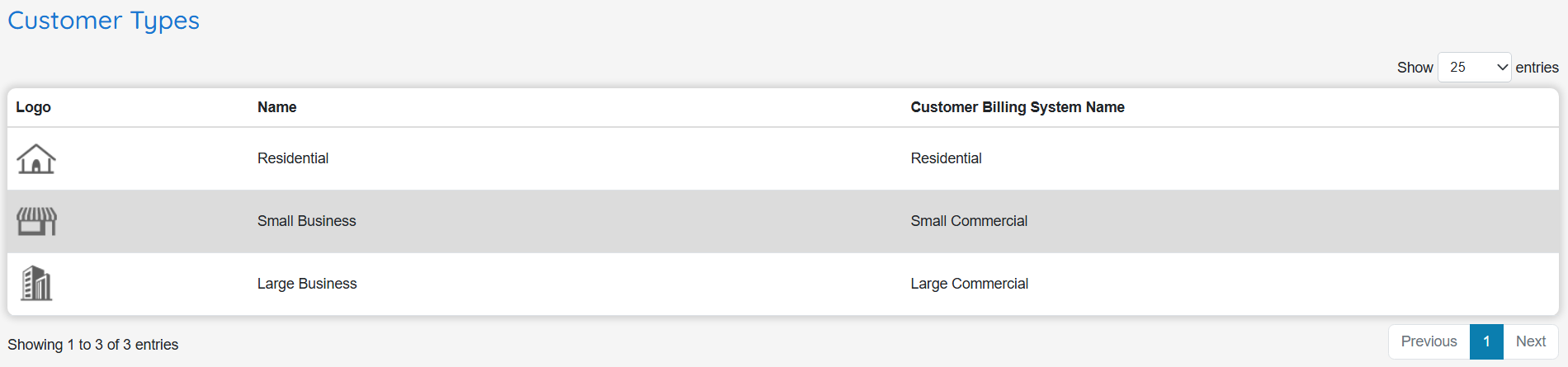
- Residential
- Small Business
- Large Business
You can scroll or use pagination to view all records.
3. Edit an Existing Customer Type
To modify a customer type:
- Click the row of the type you want to edit.
- You’ll be taken to the Edit Customer Type screen.
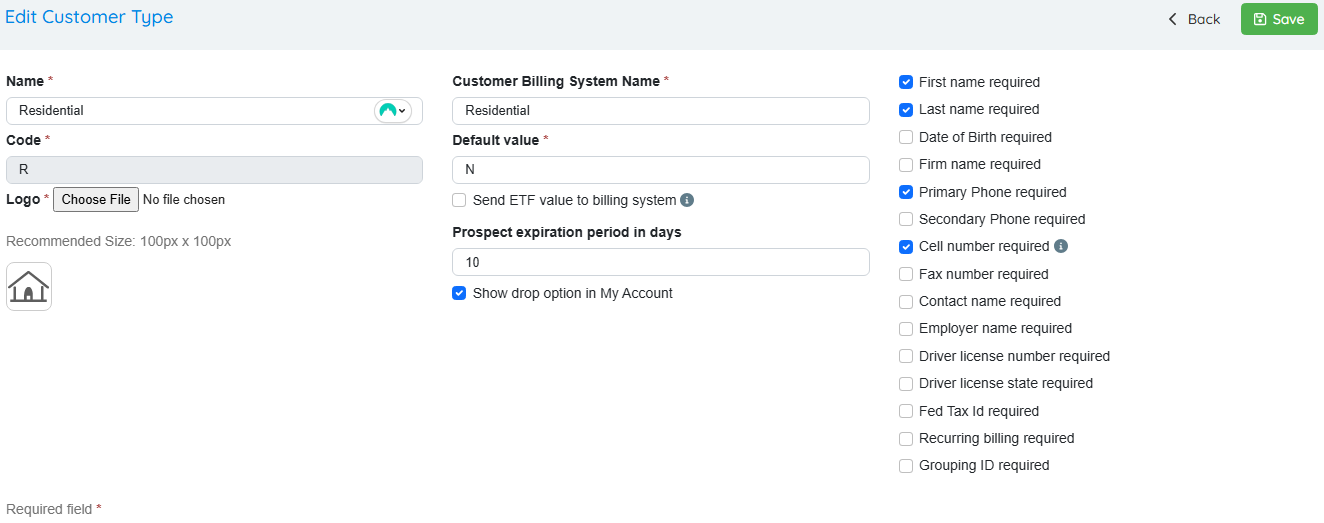
This screen includes all configurable fields for the selected type.
4. Update Basic Information
On the edit screen, you’ll see fields such as:
-
Name - What the customer type is called inside OpsAdmin.
-
Customer Billing System Name - The value sent to your REP/Billing platform.
-
Code - Your short-hand or programmatic code (if used).
-
Logo - You may upload a new logo. (The recommended size shown onscreen: 100px × 100px)
5. Select Customer Type Options
The right side of the edit screen lists numerous checkbox options.
These include (based on the screenshot):
General Options
- Default Value - Decide if this type should auto-select by default.
- Send ETF value to billing system - Enable if the billing system needs the ETF flag.
- Prospect expiration period in days - This determines when a Prospect Contract will expire. Can be configured to the specific Customer Type.
- Show drop option in My Account
Required Information Fields
Enable any field you want required for customers of this type:
- Date of Birth
- Firm Name
- Primary Phone
- Secondary Phone
- Cell Number
- Fax Number
- Contact Name
- Employer Name
- Employer Number
- Driver License Number
- Driver License State
- Fed Tax ID
- Recurring Billing
- Grouping ID
These map directly to the items shown on the right-hand panel of your screenshot.
6. Save Your Changes
Once all fields are updated:
- Click Save (green button in the top right).
This will return you to the Customer Types list, where your updates will appear immediately.